-
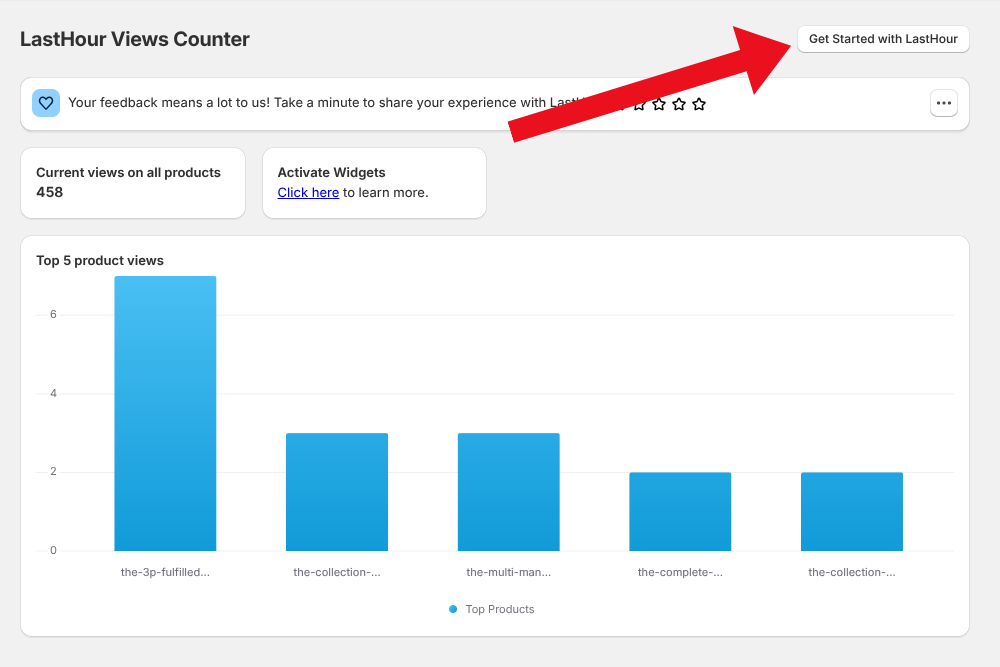
1. Click "Get Started with LastHour"
On your app dashboard, click the Get Started with LastHour button at the top right to begin the setup process.
-
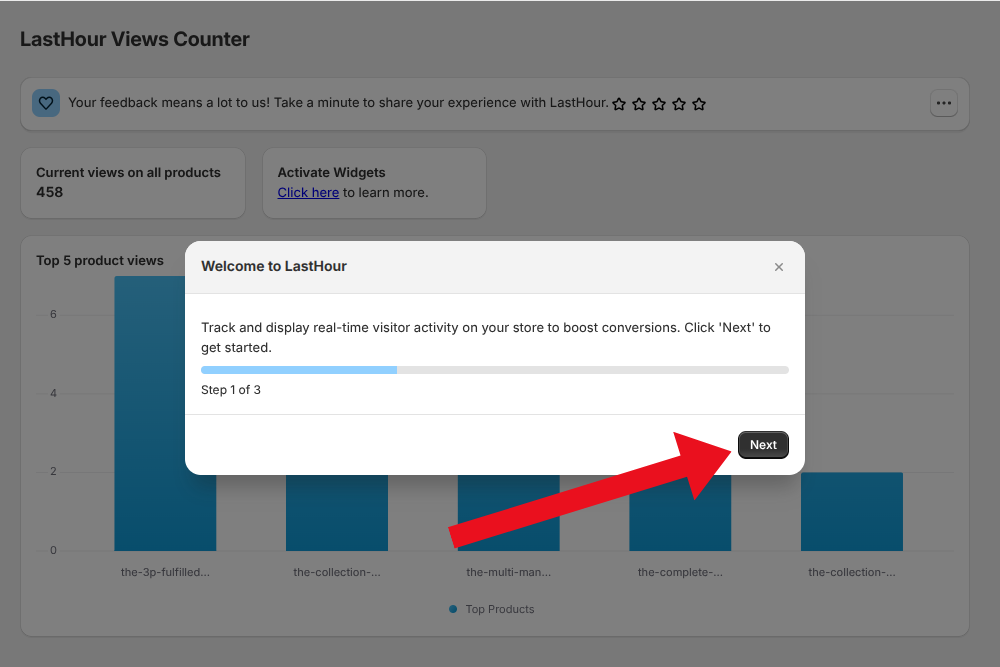
2. Click "Next" in the Popup
A popup will appear guiding you through the onboarding. Click the Next button to proceed.
-
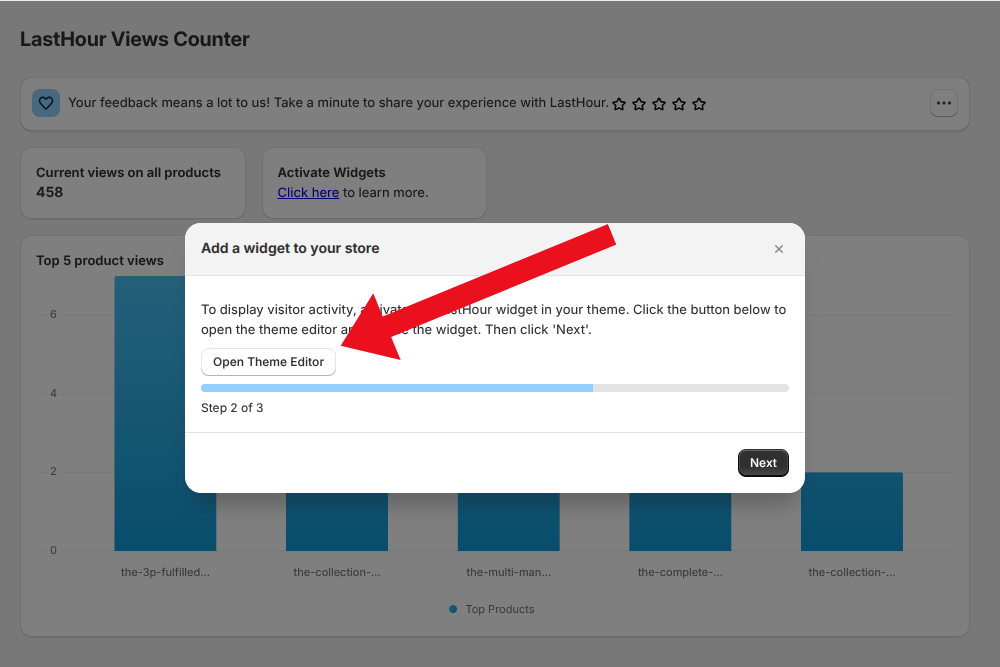
3. Click "Open Theme Editor"
In the next step, click the Open Theme Editor button to launch your Shopify theme editor.
-
4. Add and Save the LastHour Widget
You will be redirected to your store's theme editor. The LastHour visitor widget will be automatically added to your product page.
If not, you can manually add it by clicking the Add icon between two blocks.
After adding the widget, click the Save button at the top right.
Once saved, close the theme editor tab and return to the app admin.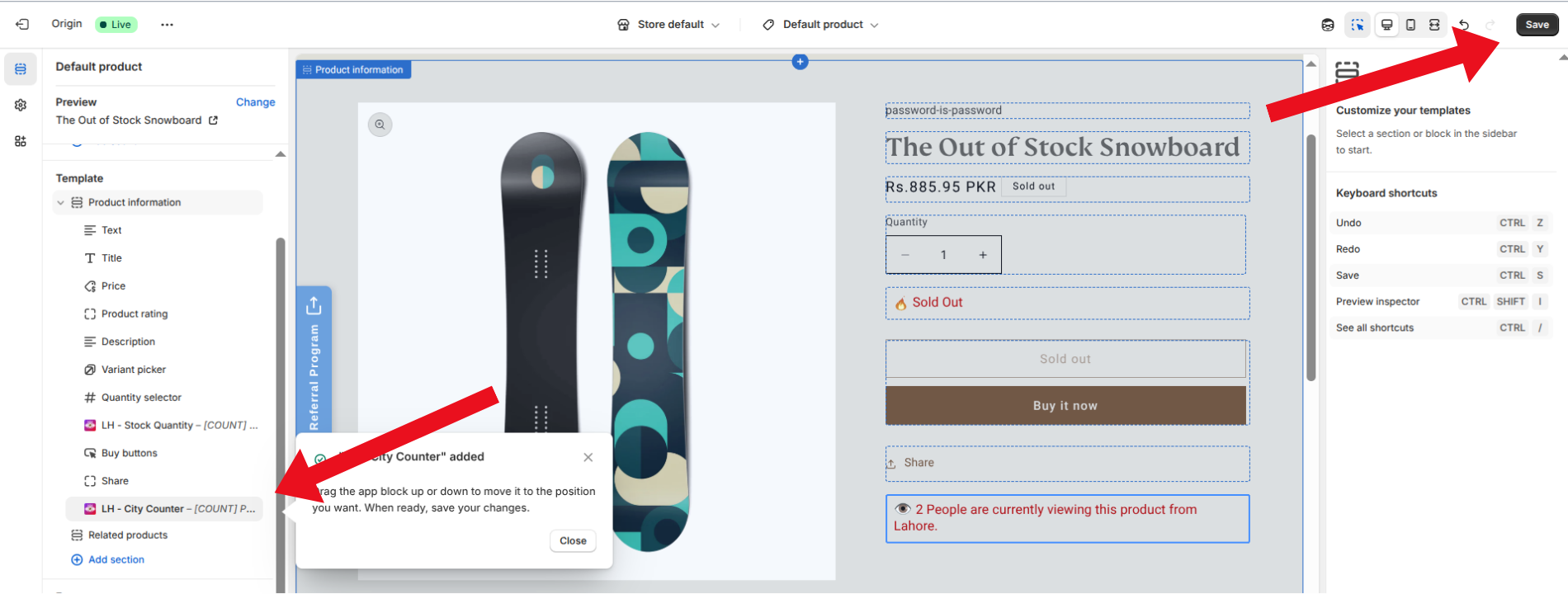
-
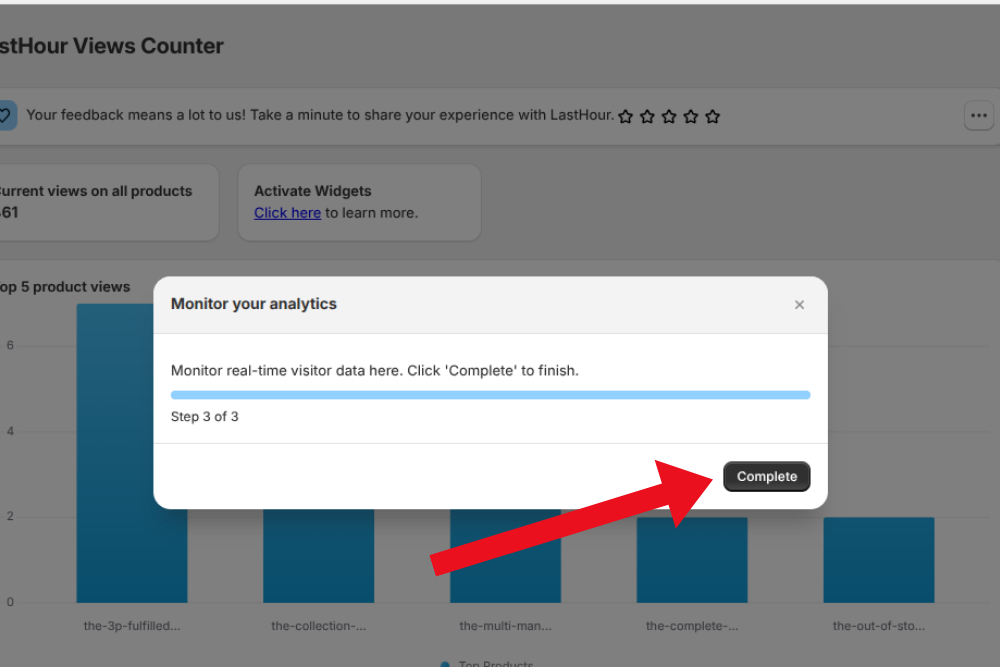
5. Complete the Setup
Back in the app, click Next and then Complete to finish the onboarding process.
-
6. Alternative: Add Widgets from the Widgets Page
If the above steps do not work, you can add all widgets from the Widgets page in the app navigation.
Here, you will see all supported widgets and their activation buttons.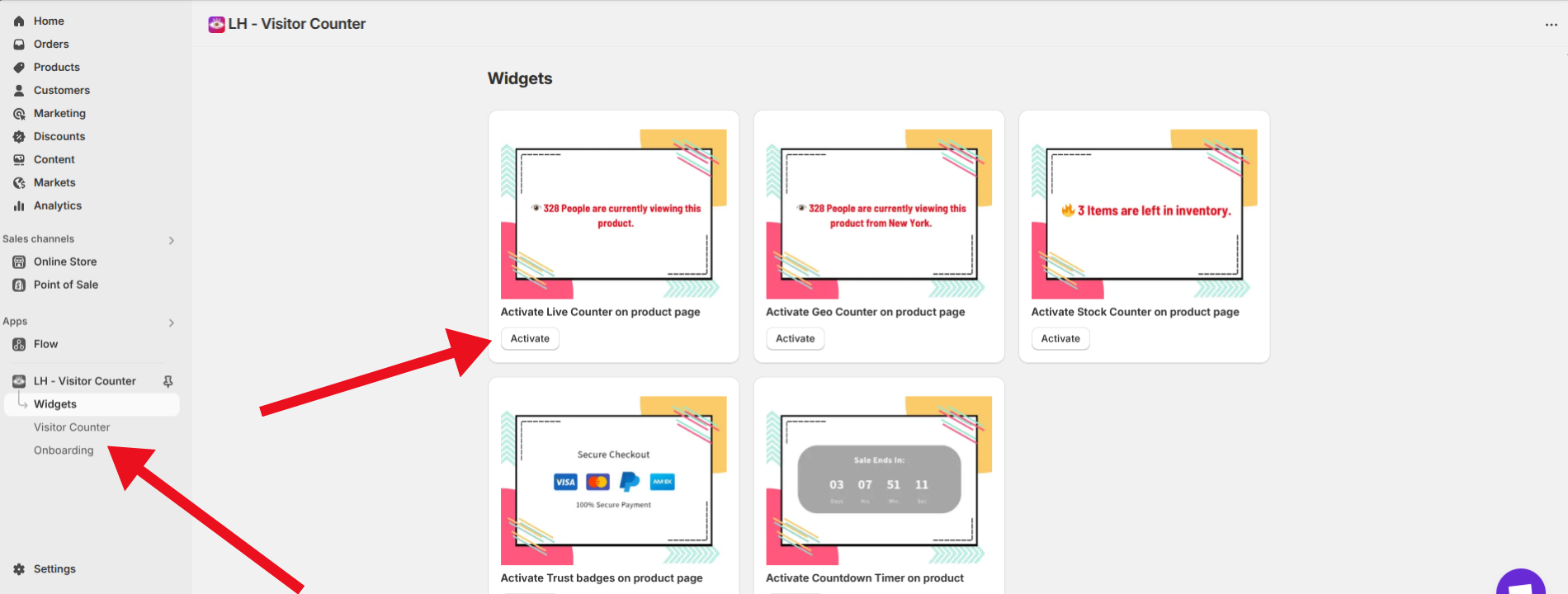
-
7. Edit Widgets via Theme Editor
Upon clicking any widget's activation button, you will be redirected to its section in the Shopify theme editor for customization.